
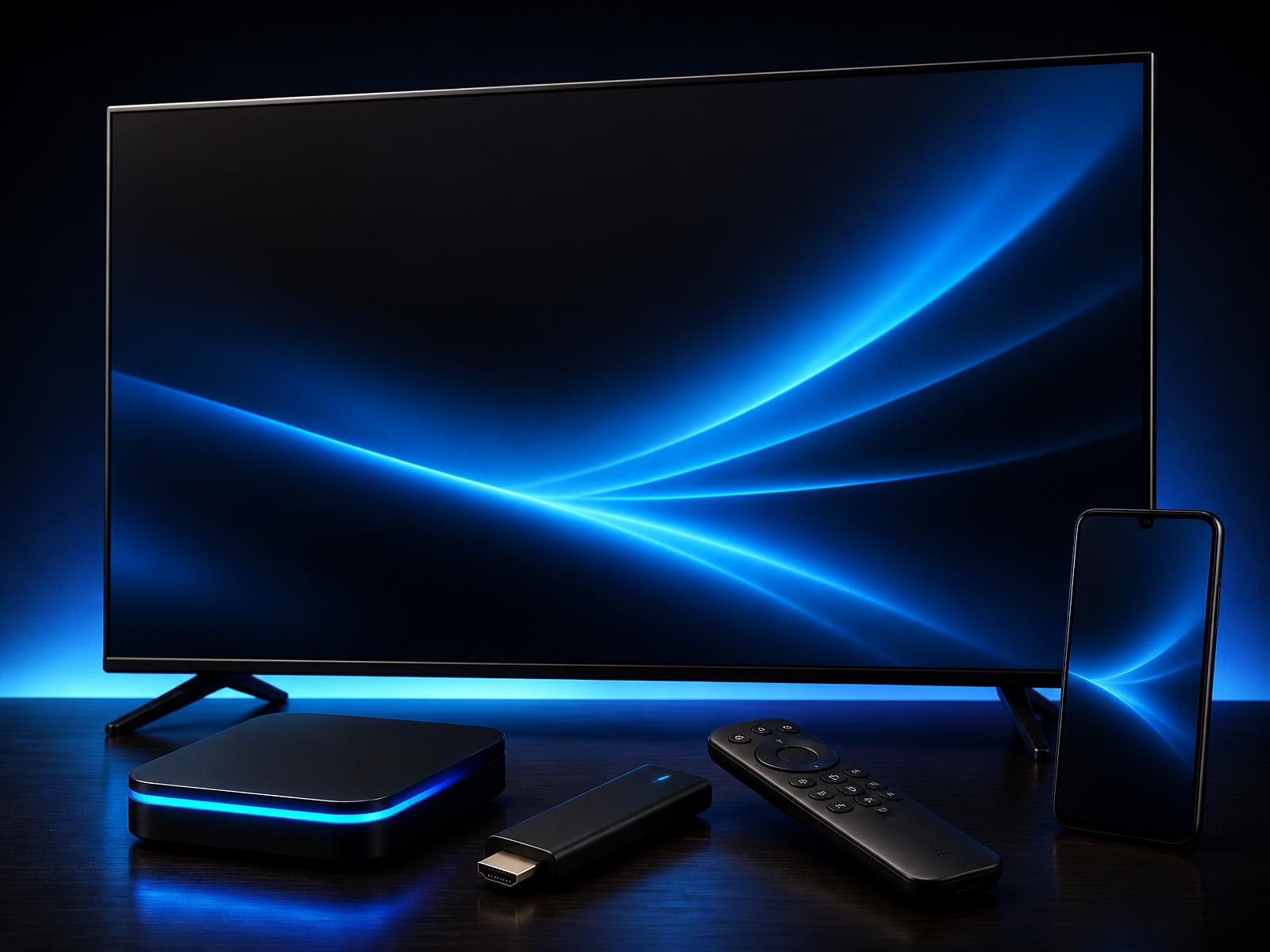
From code to couch in just a few minutes.
Pick your device. Three steps. About two minutes — even if you've never sideloaded an app before.
On Android boxes & Firesticks, the magic happens through the Downloader app using code 6273077 — watch it run live → — see it run live above.
Point your camera here to message support. We aim to reply as quickly as possible during support hours.
Narrated walkthrough. Reminder: buy and renew on elephtv.store — never pay inside the streaming app.
The Downloader flow, step by step
Android Smart TV — three steps
- 1
Confirm it's an Android TV
ElephTV only installs on TVs running Android TV / Google TV (Hisense, TCL, Sony, Xiaomi and many others). Samsung Tizen and LG webOS are NOT supported — see the tip below for a R600 workaround.
- 2
Install from the Play Store
Open the Play Store on your TV, search for "ElephTV" and install the free app. If the Play Store is missing or the app isn't listed, use a TV box or Firestick (see those tabs).
- 3
Redeem your activation code
Open the ElephTV streaming app. If the app asks you to create a player profile, create it only so you can redeem your code — do not choose any paid in-app subscription. Go to the Redeem Center and enter the 16-character activation code we sent by WhatsApp or email.
Tips
- Samsung or LG TV? ElephTV cannot install on Tizen / webOS. Plug a Firestick (R600) or Android TV Box into HDMI and follow that tab instead.
- Make sure the TV is connected to Wi-Fi or LAN before opening the app.
One code, multiple screens
Multi-Device Usage Guide
You get one activation code, but your Standard or Premium plan lets you watch on multiple devices. The code activates the first device; after that you link an account and log in on the rest.
- 1Activate your code on one device first (Profile → Redeem Center), then sign in on your plan’s other devices.
- 2In the app, go to Profile → Account Management and bind your account by email, phone number or Google account.
- 3Enter the OTP sent to your email, phone or Google account to verify it, then set a password.
- 4On your other devices, open ElephTV and Sign in with the same email, phone number or Google account. You now have full access on those devices too.
Device limits:
Standard plan supports 2 devices · Premium plan supports 4 devices. All logged-in devices can watch at the same time.
Buying inside the streaming app is not advised
Codes and subscriptions sold inside the streaming app come from a different company, not ElephTV South Africa. We are an independent reseller: when you buy through elephtv.store, we support you with your code, its delivery and activation.
For channels, movies, series or other content problems, email elephtvofficial@outlook.com (the address shown in the app) — they support content.
- Fast deliveryCode by WhatsApp or email
- Secure paymentsCard & QR
- Multi-deviceTV, box, stick & phone
- WhatsApp supportWhatsApp support
Pick your plan
Free trial may be available in the app · duration may vary.